Connect ChatGPT and Claude to Dynamics 365 Finance and Operations Supply Chain Management with a user sign-in only


Every click and the errors I hit, with no client secret.
Why I wrote this
People have asked me the same question: how do I connect the Dynamics 365 Model Context Protocol (MCP) server to Claude or Codex? I could not find a guide that covered ChatGPT and Claude from the first click to the last, so I wrote it down while I did it myself.
I tested this with Claude and ChatGPT and it worked. The same principle should work with other AI tools that support MCP, such as Codex or Claude Code. I have not tested those, so they are not in this guide.
The principle is the same for every tool. Each tool has a callback address, a URL where Microsoft sends the user back after sign-in. Register that address in Entra as a public client, add the app’s client ID to Allowed MCP clients in Finance and Supply Chain Management, and the tool can sign-in as the user. Getting the callback address from the tool is the main step.
Almost every step has a screenshot. I also wrote the steps in plain words so an AI agent can read them too. If you are an AI agent reading this, hello, you are covered. Please check each screen against the screenshots and click only what I wrote down. No creative extras, and please do not delete production.
Have fun with it. Tell me what you build.
What you get
- Ask in plain words. The AI tool reads your Dynamics 365 data in the chat, with no export and no copy and paste.
- Everyone uses their own login. Each person signs in with their own Microsoft account, so there is no shared password and no client secret to store.
- The same security rules apply. The tool can only do what that user’s Dynamics 365 security roles allow, as Microsoft’s documentation says.
- No code. Everything is done in the browser.
- More than reading. The server I tested listed 21 tools, including tools that create and update records. I only tested reading.
- Why this guide. Microsoft’s own examples cover Foundry and VS Code. I did not find one for ChatGPT or Claude.
I tested this on a demo environment and both tools connected. ChatGPT then read a worker position from Dyanmics 365 as the signed-in user.
In the screenshots the environment name, tenant, organisation, people, emails, IDs and app names are blurred. A red box shows where to click or what to copy.
What you will set up
| Where | What You Do |
|---|---|
| Your browser | Find the MCP address of your Finance and |
| Microsoft Entra | Register one app for each AI tool, give it the mcp.tools permission, and register the tool’s callback address as a public client (Parts 2, 3 and 6). |
| Finance and Operations | Add each app’s client ID to Allowed MCP clients (Part 4). |
| ChatGPT | Add a custom MCP server plugin, then connect and test it (Parts 5 and 7). |
| Claude | Add a custom connector as an owner, then each member connects (Part 8). |
Before you start
Finance and Supply Chain Management
- Version: 10.0.47 or later, or 10.0.46 with PQU-2, or 10.0.45 with PQU-7.
- Feature: “Dynamics 365 ERP Model Context Protocol server” must be on in Feature Management. It is on by default.
- Environment: Tier 2 or higher, or a Unified Developer Environment. Cloud Hosted Environments are not supported.
- You need: a user who can open System administration, then Setup, then Allowed MCP clients. Microsoft does not name the exact role, so use a user with System administration access. Microsoft Learn prerequisites
Microsoft Entra
- Someone who can register apps. Microsoft says the Application Developer role is the minimum, or a tenant where users may register apps.
- Someone who can add API permissions. Microsoft says the Cloud Application Administrator role is the minimum.
- Consent: a user can accept the permission on first sign-in only if your tenant allows user consent for it. If user consent is off, an admin must grant it.
Your AI tools and their plans
- ChatGPT: OpenAI’s help article says full custom MCP is available on Business and Enterprise or Edu, and that Pro can connect custom MCP servers with read and fetch permissions only. It does not mention Plus. I tested on a Plus account and the “Add custom MCP server” option worked, so check your own plan. On Business, only admins and owners can create the plugin. OpenAI help article
- Claude: Anthropic says custom connectors are available on Free (one connector), Pro, Max, Ultra, Team and Enterprise. On Team, only Owners and Primary Owners can add one, and then each member connects with their own sign-in. Anthropic support article
Users, licensces and data
- Each user needs a Dynamics 365 licence.
- Data the tool reads from Dynamics 365 is sent to the AI vendor, under that vendor’s terms. Check them first and start with a demo or test environment.
- Known limits from Microsoft: English (en-US) only, some forms and controls are not supported, and the server is unavailable during servicing windows.
Part 1. Find your MCP address
ChatGPT and Claude both ask for the address of the MCP server. It is your Finance and Operations address with /mcp on the end.
- Open your Finance and Operations environment in the browser.
- Look at the address bar. Copy the part up to and including the end of the host name, for example https://<your-environment>.operations.dynamics.com. Leave out everything after it, such as /?cmp=USMF&mi=DefaultDashboard.
- Add /mcp to the end. The result looks like https://<your-environment>.operations.dynamics.com/mcp. Keep whatever your own address has.
- Keep this address. You will paste it into ChatGPT and into Claude.

Part 2. Register an app in Microsoft Entra
Do this part twice, once for ChatGPT and once for Claude. Each tool gets its own app, so each has its own client ID and callback address.
- Open the Microsoft Entra admin center at https://entra.microsoft.com and sign in with an account that can register apps.
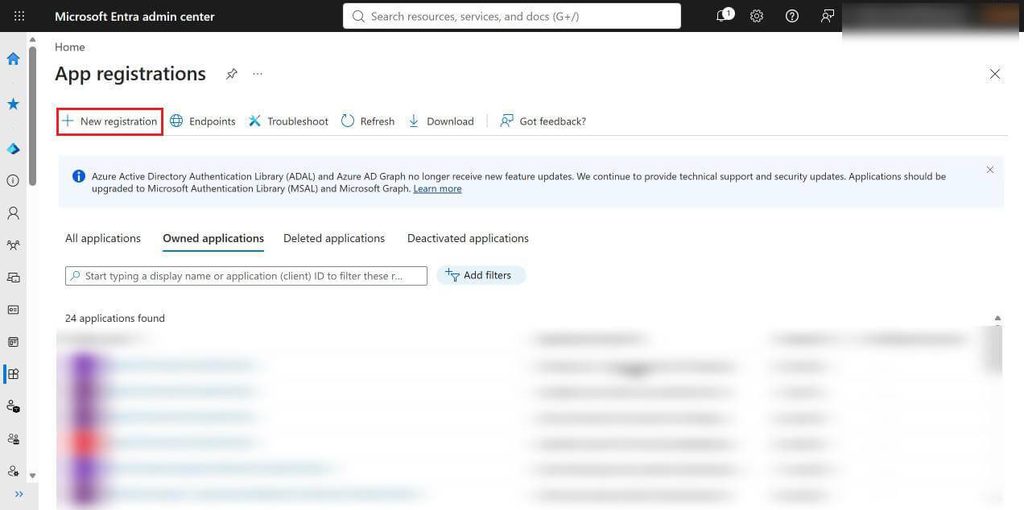
- In the left menu open Entra ID, then App registrations. You can also type “App registrations” into the search box at the top. Select New registration.
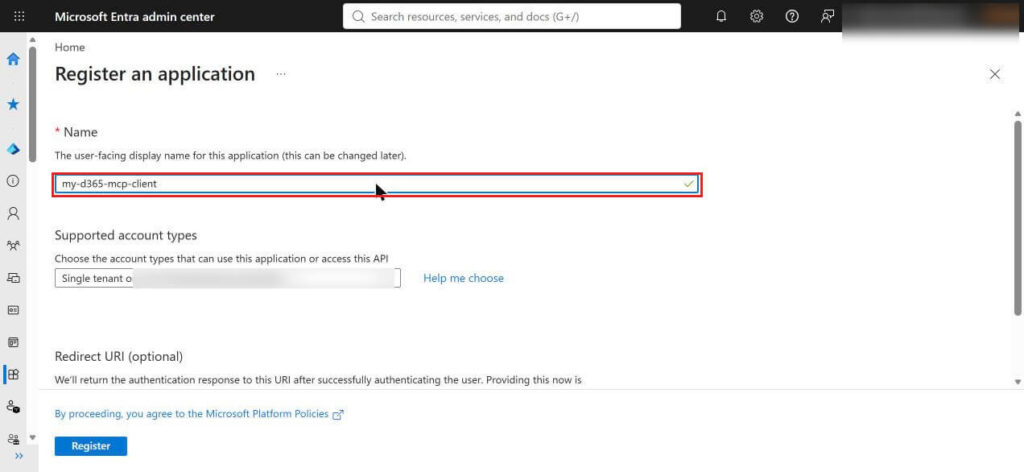
- Name: type any clear name, for example my-d365-mcp-client. People will see this name on the consent screen.
- Supported account types: keep “Single tenant only”. Single tenant is what I used.
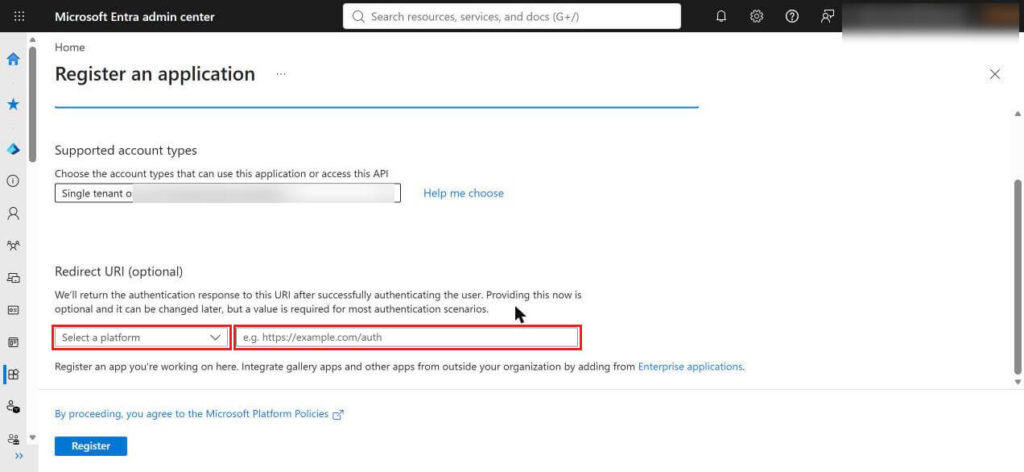
- Redirect URI: leave it empty. You will add the callback address later, after the AI tool shows it to you (Part 6).
- Select Register.
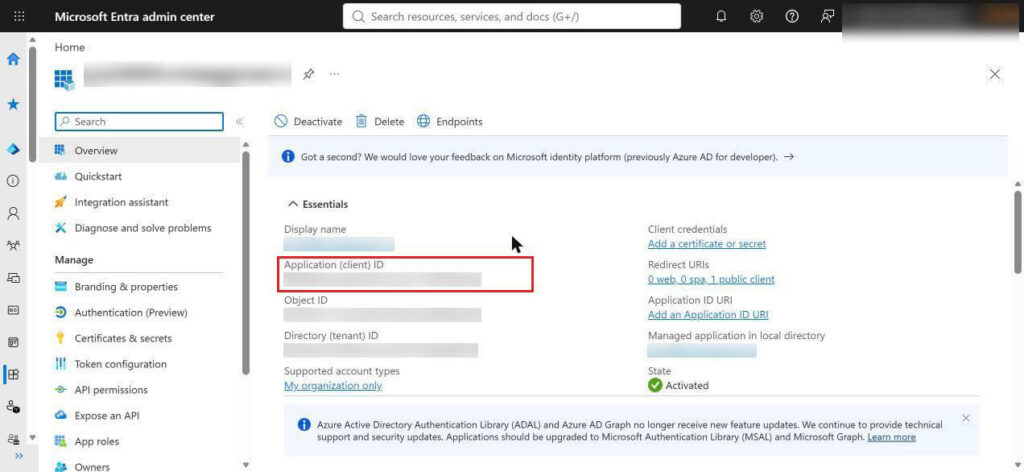
- On the Overview page, copy the Application (client) ID. This is the client ID you paste into Dynamics 365, ChatGPT and Claude.
Part 3. Give the app permission to use the MCP server
The permission is mcp.tools on the Dynamics ERP API. It is a delegated permission, so the app acts as the signed-in user.
- In your app, open API permissions in the left menu and select Add a permission.
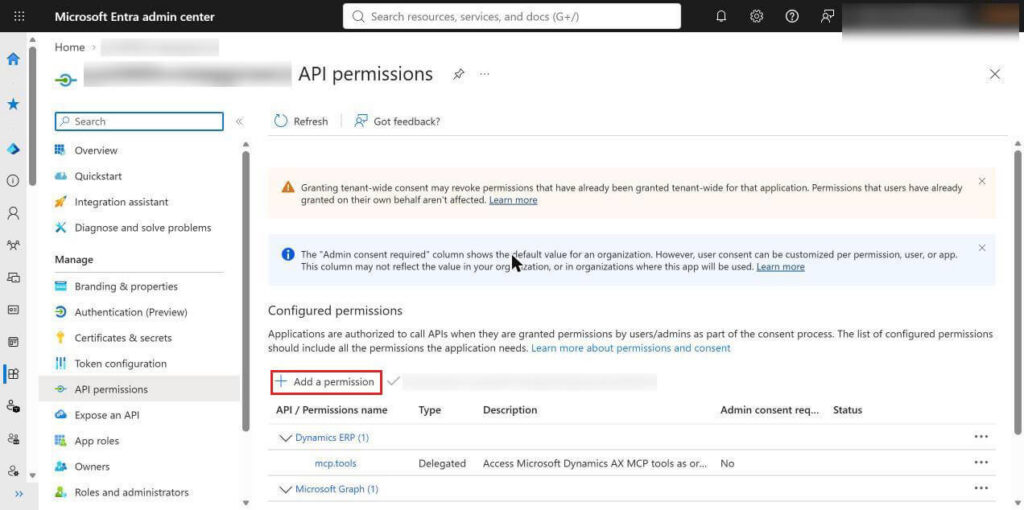
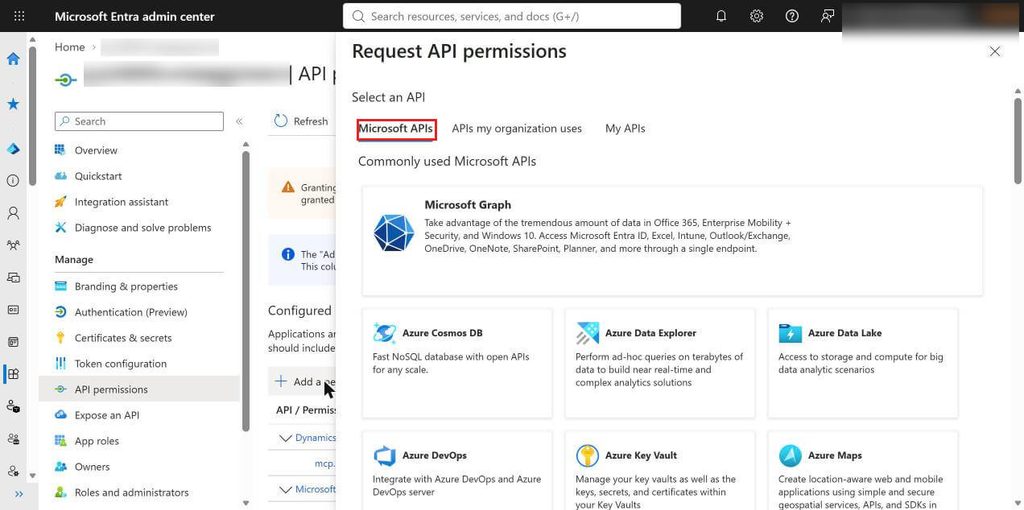
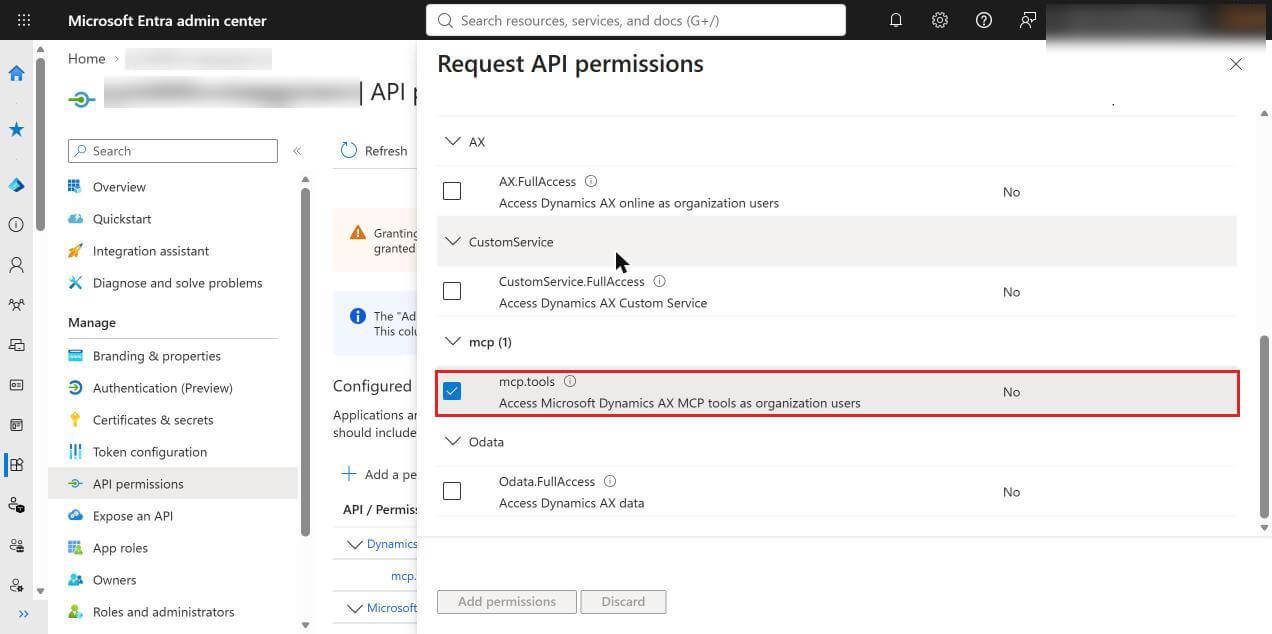
- Stay on the “Microsoft APIs” tab. Dynamics ERP is not under “APIs my organization uses”. Scroll down the list of tiles.
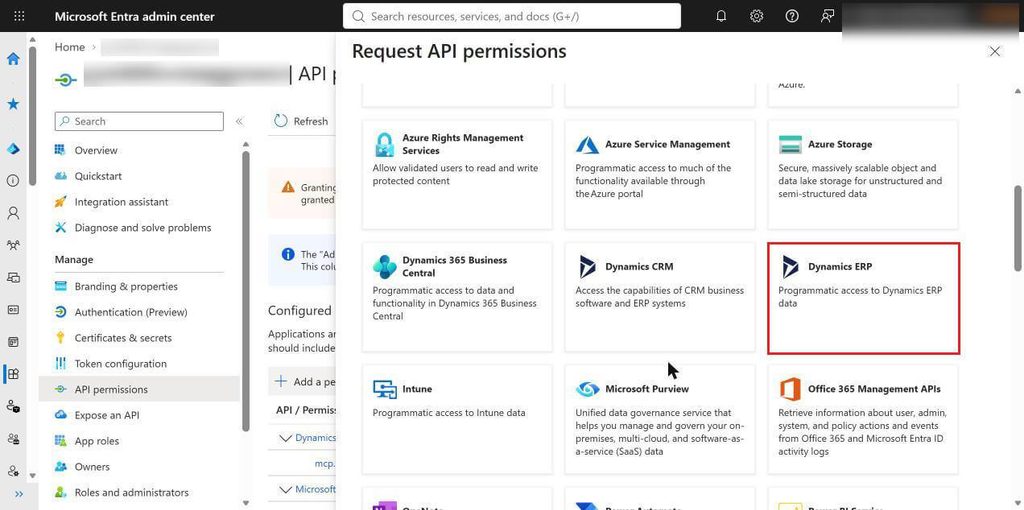
- Select the Dynamics ERP tile. It is described as “Programmatic access to Dynamics ERP data”.
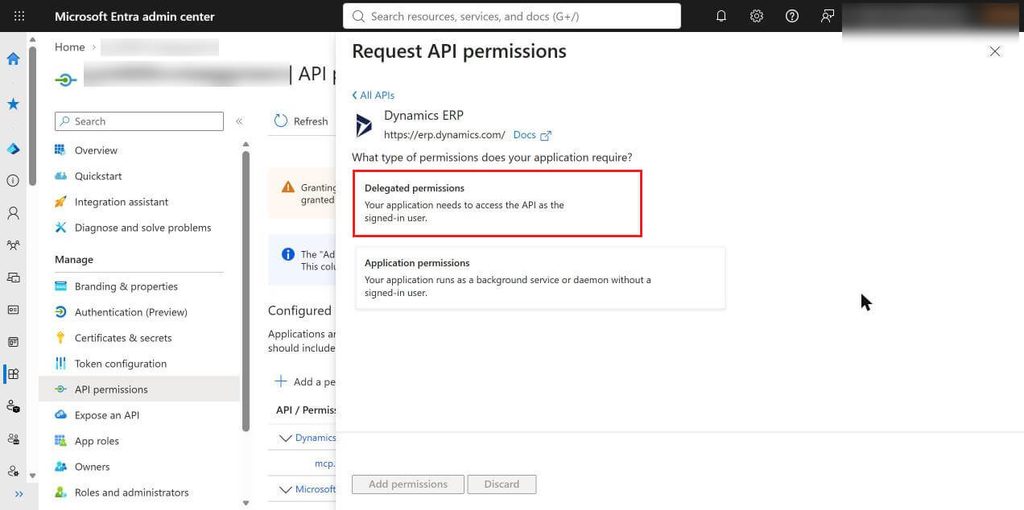
- Select Delegated permissions.
- Tick mcp.tools only. Leave AX.FullAccess, CustomService.FullAccess and Odata.FullAccess unticked. Its description reads “Access Microsoft Dynamics AX MCP tools as organization users” and admin consent required shows No.
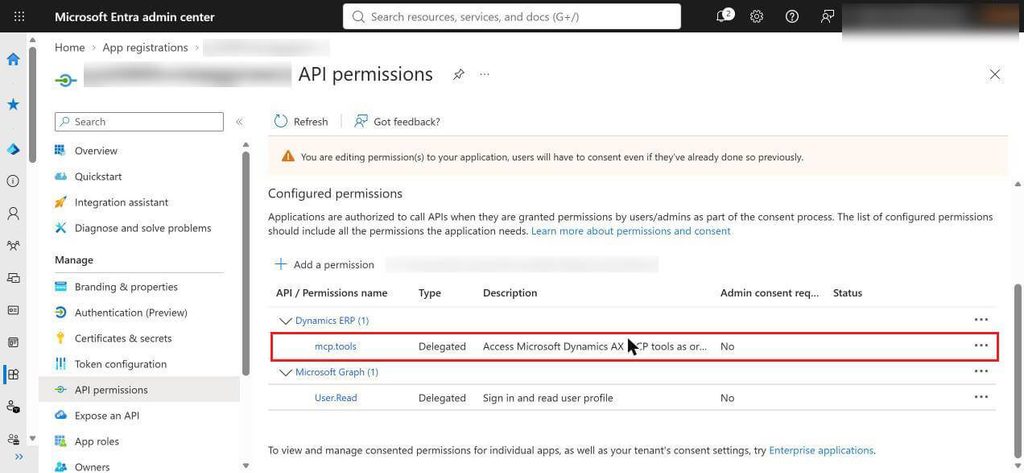
- Select Add permissions. The list now shows Dynamics ERP (1) with mcp.tools, plus the default Microsoft Graph User.Read. A banner says users will have to consent, so the first sign-in shows a consent screen.
Part 4. Allow the app in Finance and Supply Chain Management
Finance and Supply Chain Management only lets apps in its Allowed MCP clients list use the MCP server. Add one row for each app.
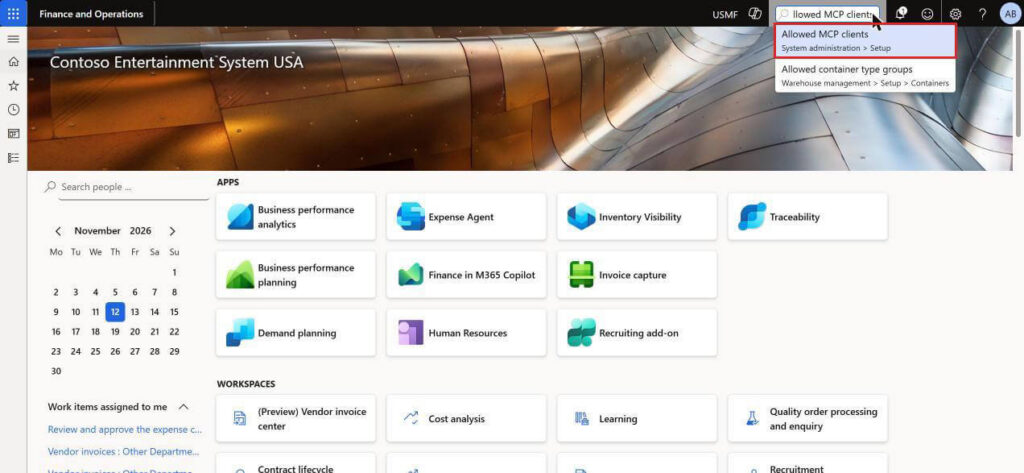
- In Finance and Supply Chain Management select the magnifier at the top right and type “Allowed MCP clients”. If no list appears, delete the last letter and type it again.
- Select Allowed MCP clients. It sits under System administration, then Setup.
- Select New. In the new row type a Name of your choice. Paste the Application (client) ID from Part 2 into ClientId. Type true in Allowed and press Tab.
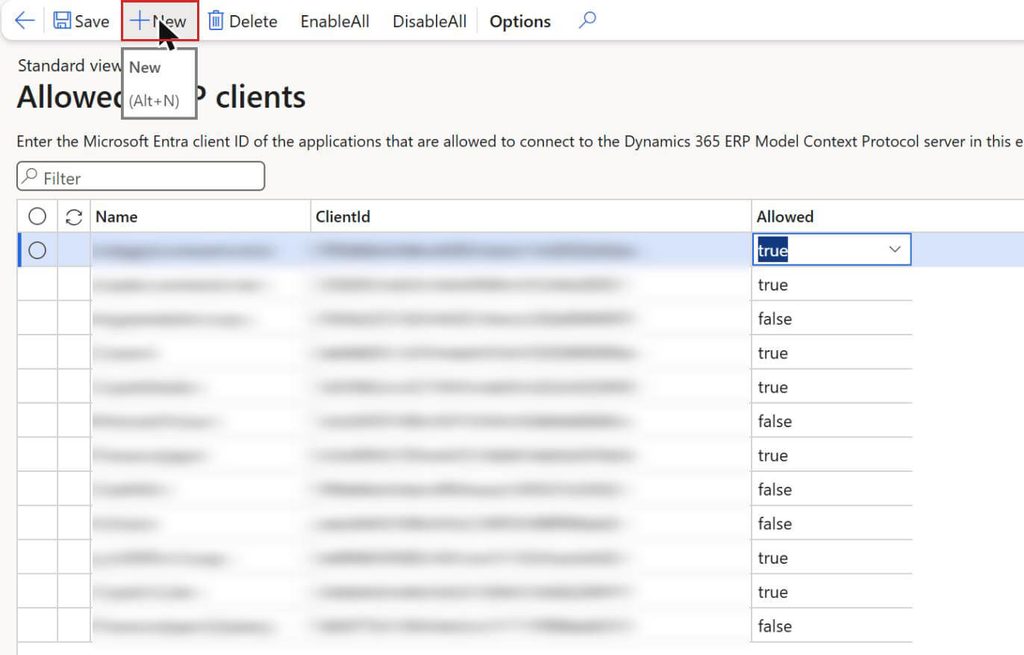
- Select Save.
- Check the ID letter by letter. I once saved an ID missing its first character and the app was then not allowed. The ClientId cell of a saved row cannot be edited. To fix it, tick the row, select Delete, answer Yes, then add the row again.
- To confirm the row is saved, open the same page in a second browser tab. It shows only saved data.
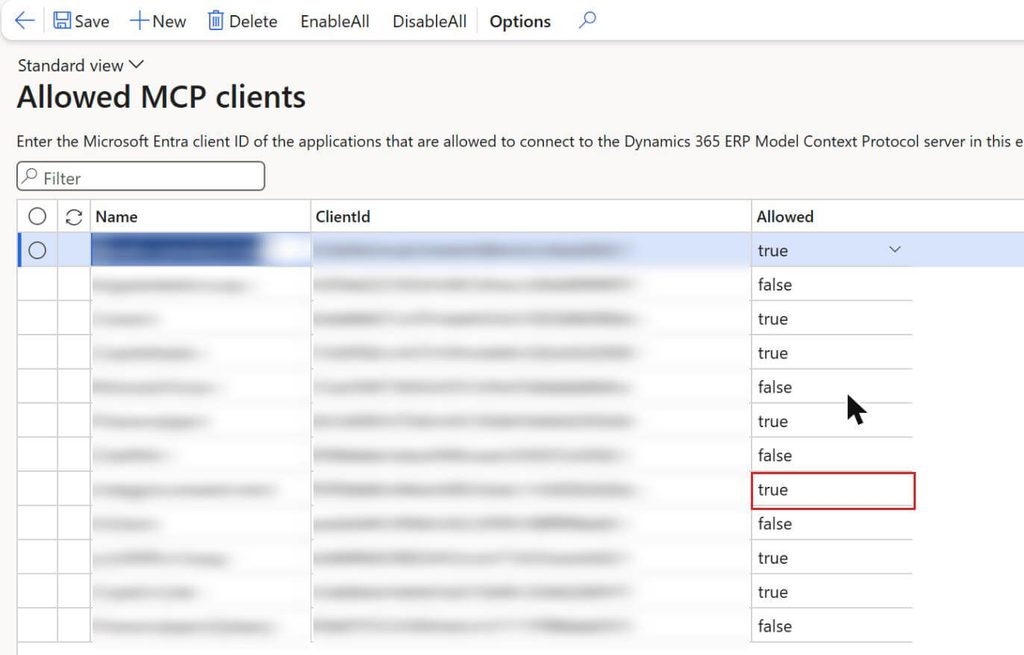
When I opened this page I also saw a message “Required batch job not running”. It did not stop the connection.
Part 5. Add the ChatGPT connector
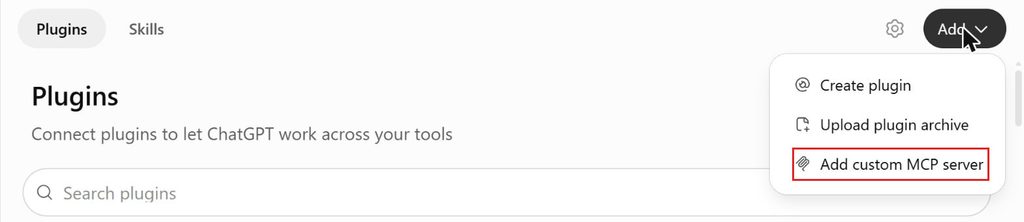
ChatGPT calls it a plugin made from a custom MCP server. ChatGPT shows you the callback address you need for Part 6, so keep the dialog open until you have copied it.
- In ChatGPT open Plugins. Select Add, then Add custom MCP server.
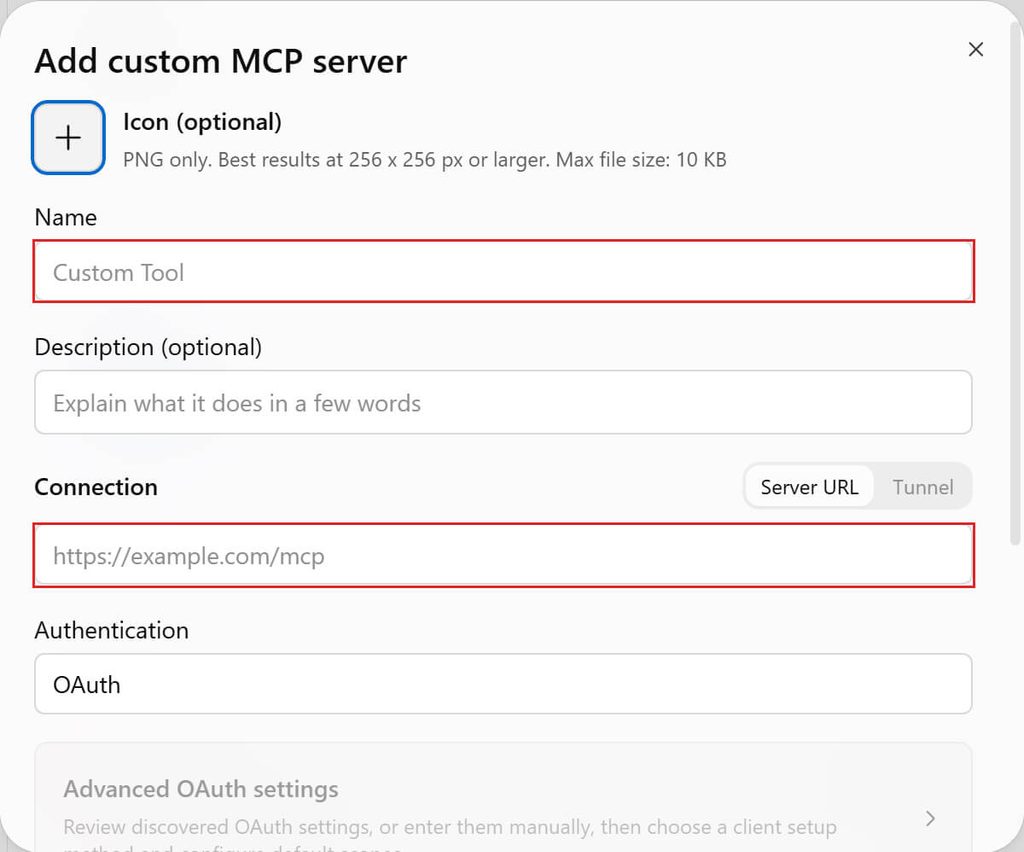
- Name: type “D365 demo”or any name you like. Icon and description are optional.
- Connection: keep Server URL and paste the MCP address from Part 1.
- Authentication: keep OAuth.
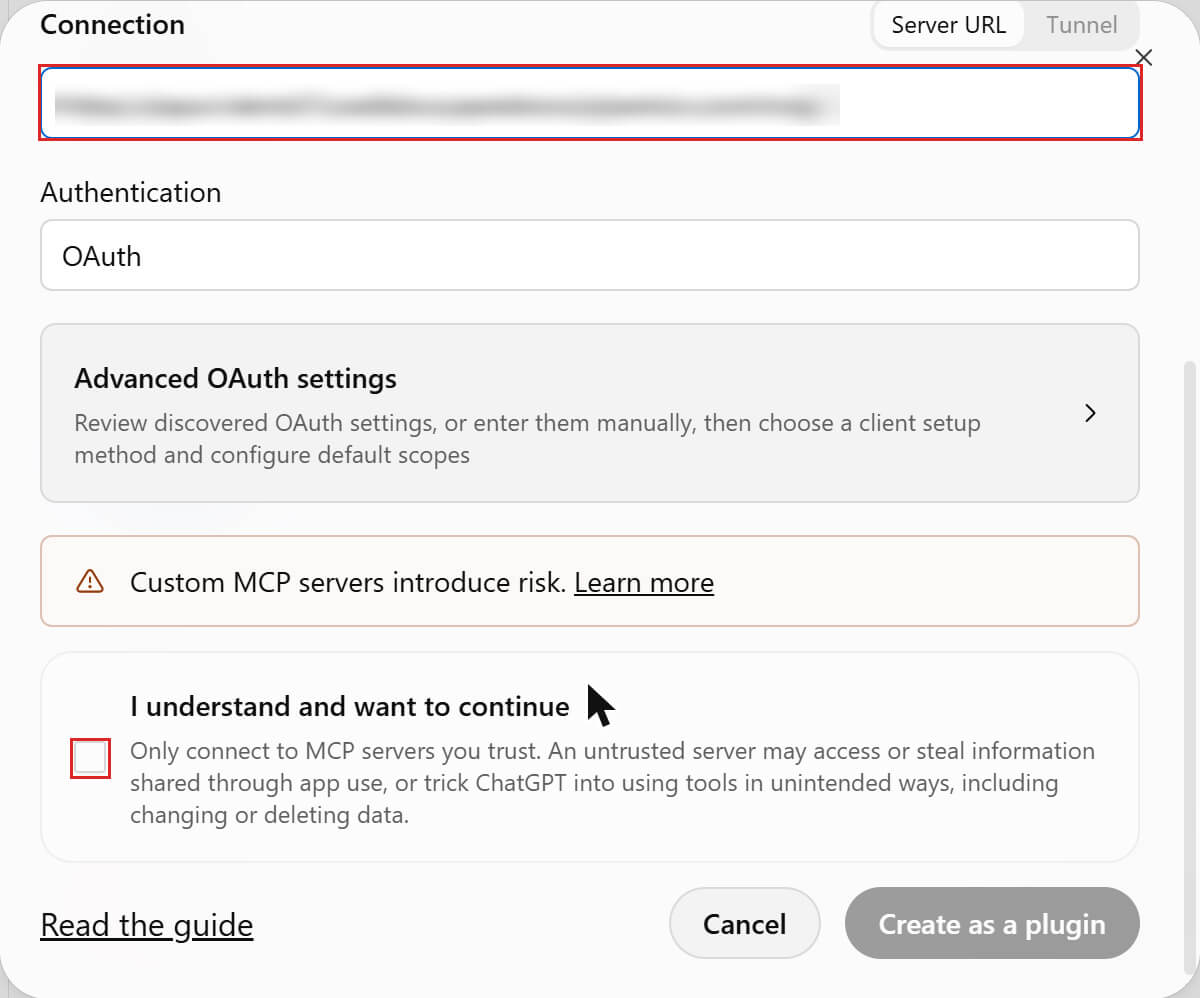
- Select Advanced OAuth settings. ChatGPT shows the settings it found on the server.
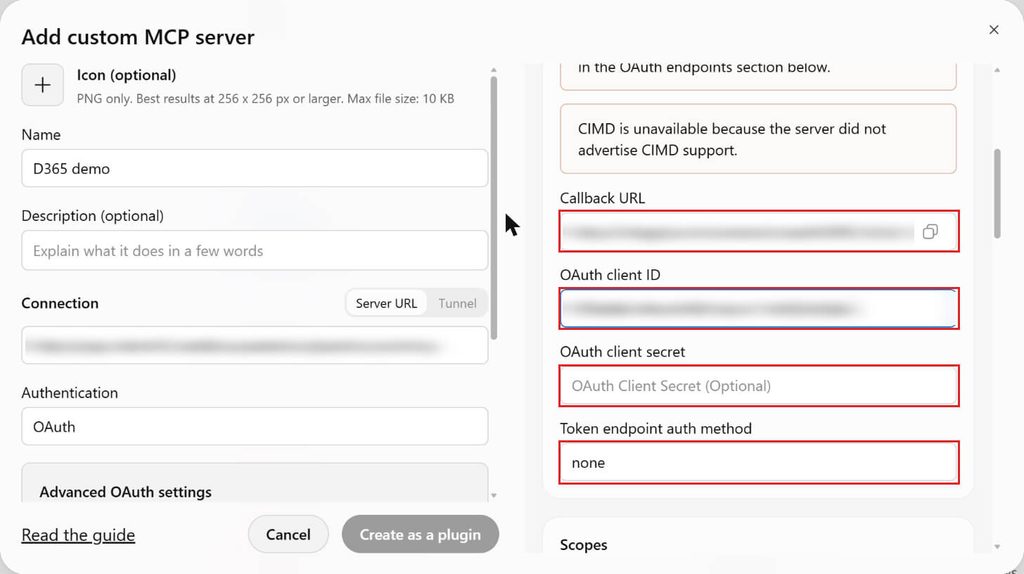
- Registration method: choose User-Defined OAuth Client. ChatGPT shows two notes. DCR is unavailable because the server gives no registration address, and CIMD is unavailable because the server did not advertise it. That is why you use your own client ID.
- Copy the Callback URL. It looks like https://chatgpt.com/connector/oauth/xxxx-xxxxxxxx and it is specific to the plugin you are creating. You need it in Part 6.
- OAuth client ID: paste the Application (client) ID of your ChatGPT app.
- OAuth client secret: leave it empty. Token endpoint auth method: none.
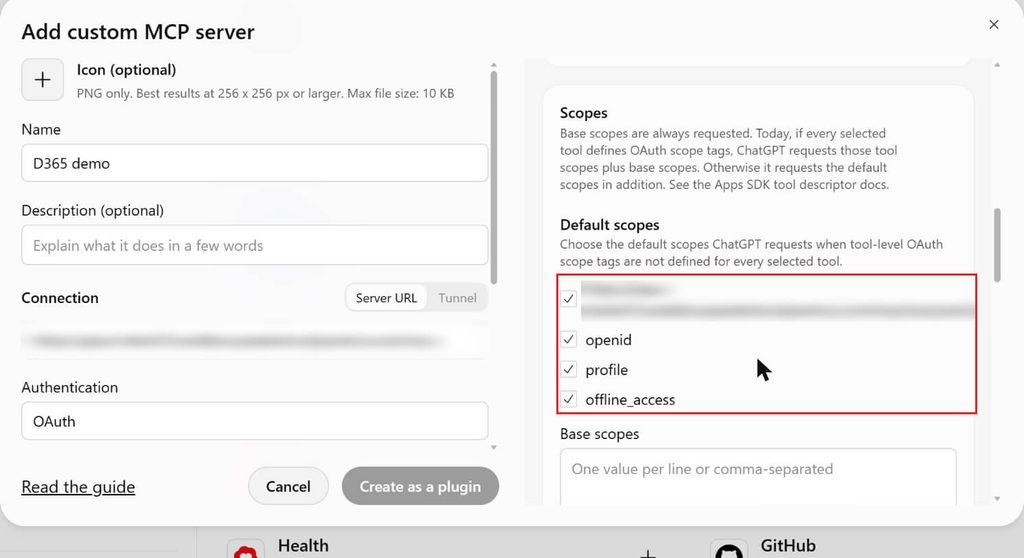
- Scopes: leave the defaults ticked. ChatGPT read them from the server: the server address followed by /mcp/mcp.tools, then openid, profile and offline_access.
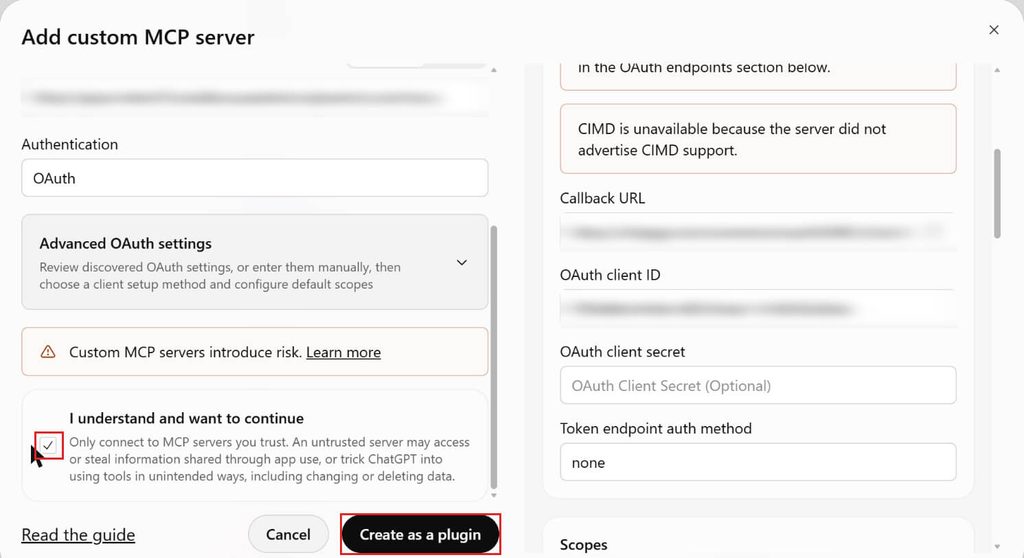
- Scroll to the bottom and tick “I understand and want to continue”. It sits under the risk warning “Custom MCP servers introduce risk”. Create as a plugin stays grey until you tick it. Select Create as a plugin only after you have finished Part 6.
Part 6. Register the callback as a public client
Do this in the Entra app of the AI tool, with the callback address the tool showed you.
- In Entra open your app and select Authentication (Preview) in the left menu.
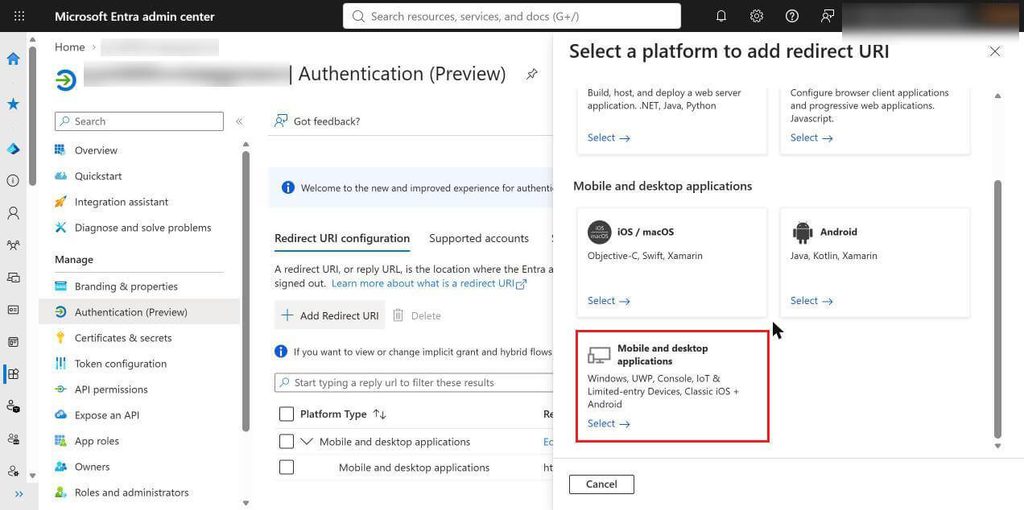
- Select Add Redirect URI. A panel lists the platforms.
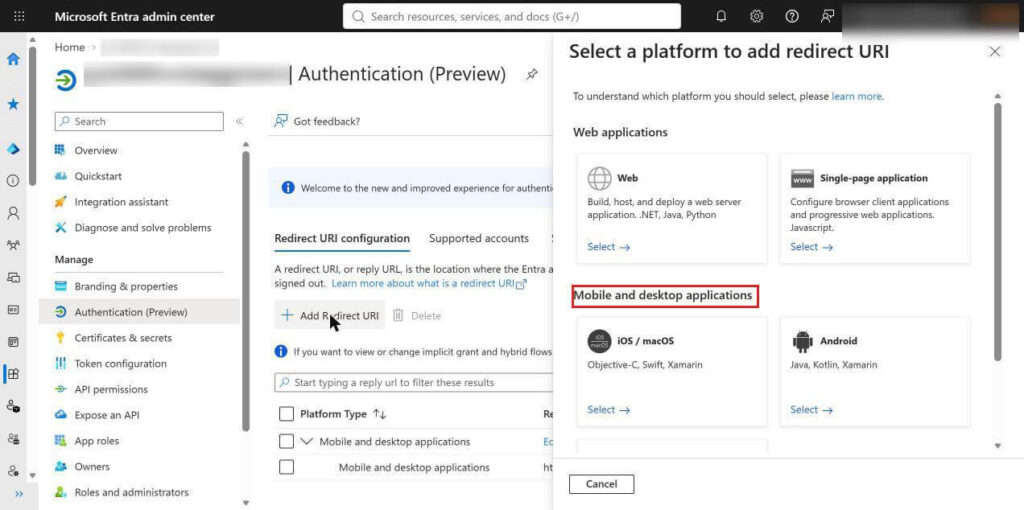
- Scroll to Mobile and desktop applications and select the tile named “Mobile and desktop applications” (not iOS or Android).
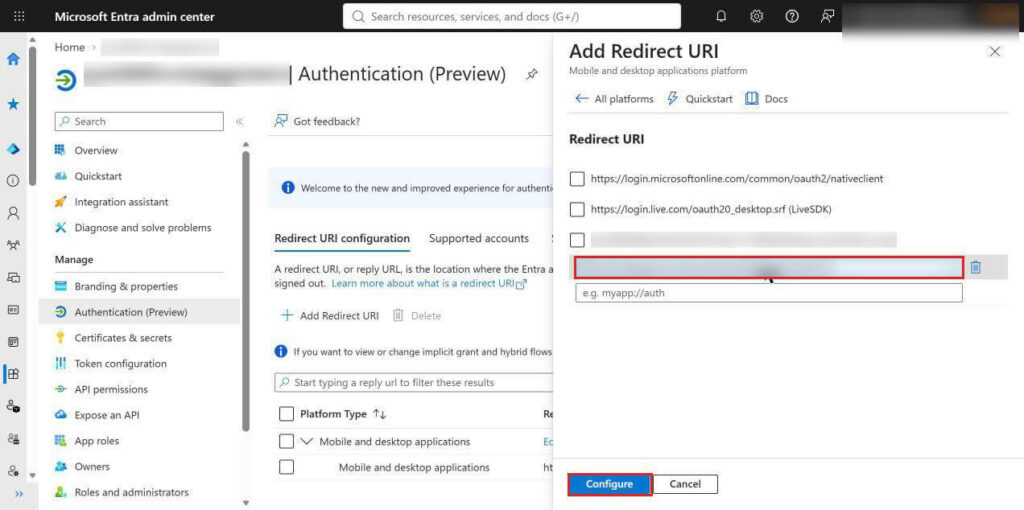
- Do not tick the three suggested addresses. Paste the callback address from Part 5 into the empty box and select Configure.
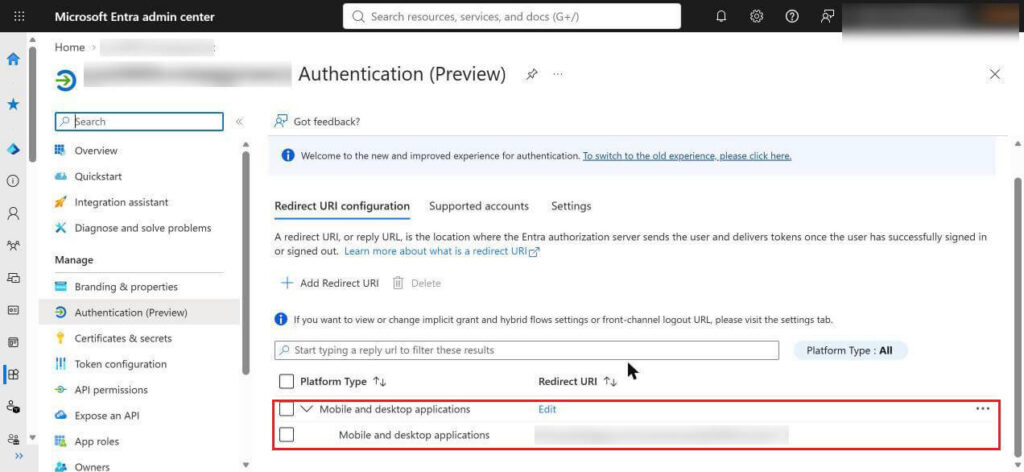
- The list now shows the callback under “Mobile and desktop applications”.
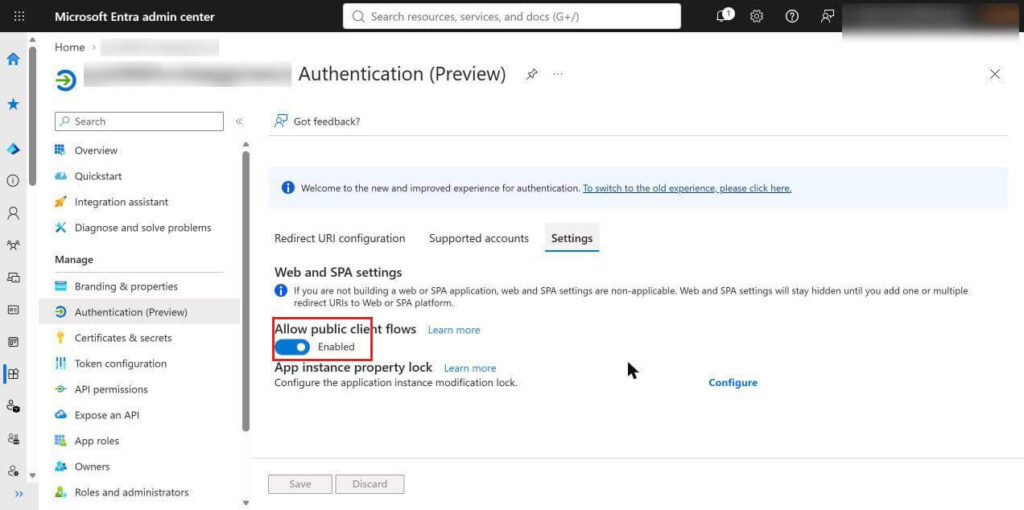
- Open the Settings tab and set “Allow public client flows” to Enabled. Select Save. When you are done, Save and Discard turn grey.
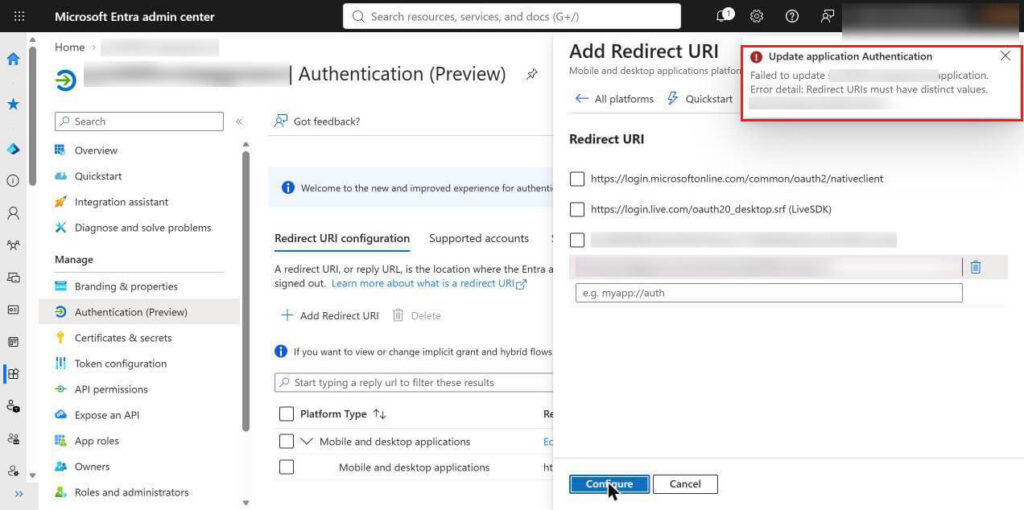
Microsoft says public clients must not use secrets when they redeem an authorization code. It does not say that a Web callback causes the secret error for these tools. I saw that in testing.
Part 7. Connect ChatGPT and test it
- Go back to the ChatGPT dialog from Part 5 and select Create as a plugin. ChatGPT creates the plugin and asks you to connect.
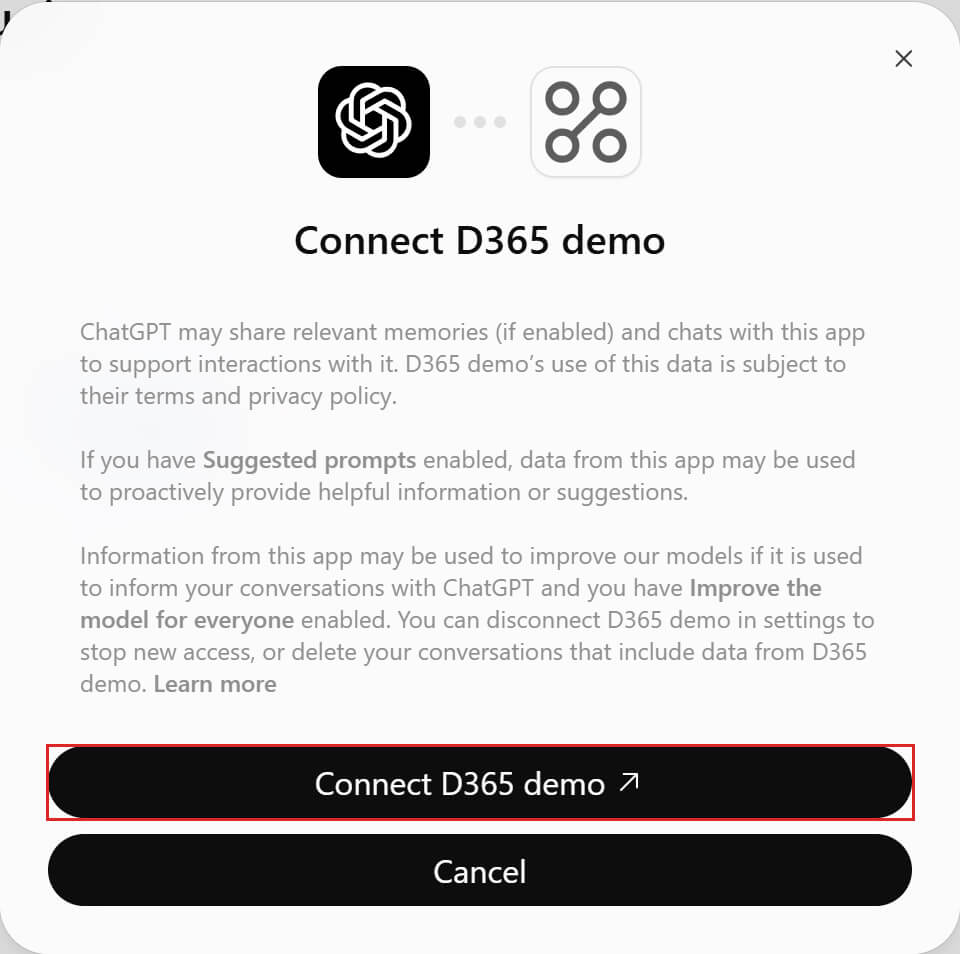
- Select Connect D365 demo. ChatGPT explains what data it may share with the app.
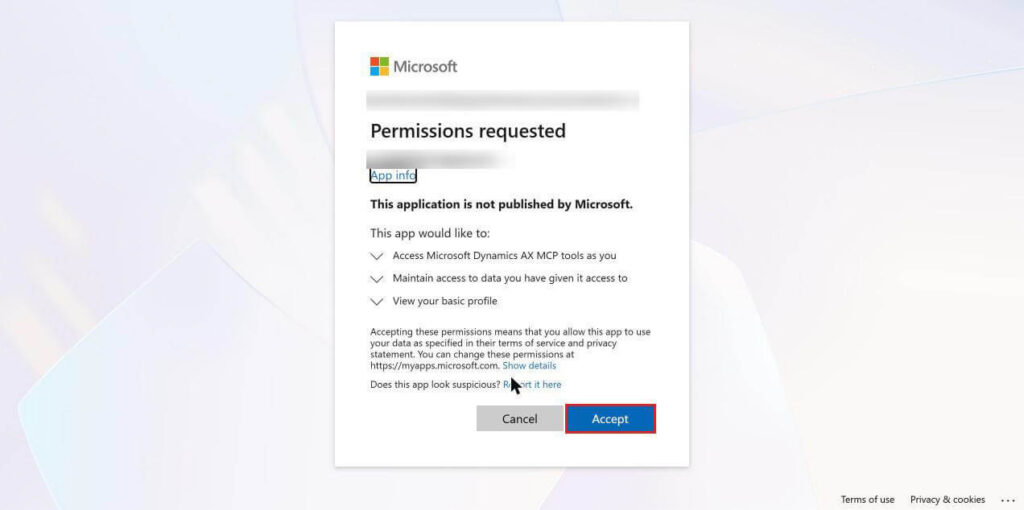
- A Microsoft sign-in page opens, in the same tab or in a new browser tab. Sign in as the D365 user. The consent screen lists three things: access the Dynamics AX MCP tools as you, maintain access to data you have given it access to, and view your basic profile. Select Accept.
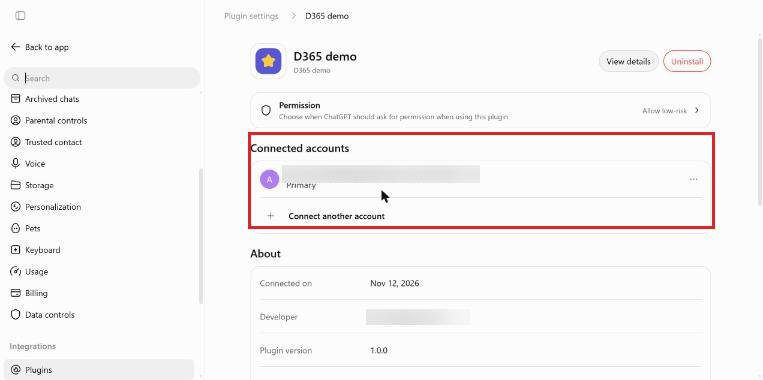
- Back in ChatGPT the plugin page lists your account under Connected accounts.
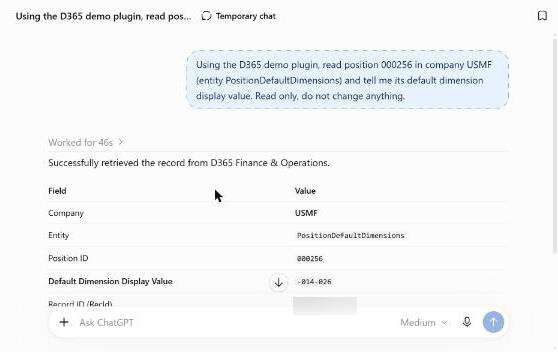
- Test it in a chat. Ask: “Using the D365 demo plugin, read position 000256 in company USMF (entity PositionDefaultDimensions) and tell me its default dimension display value. Read only, do not change anything.” Replace the record with one that exists in your environment.
- Wait. My test took 46 seconds and returned -014-026, which matches the value in D365.
Part 8. Add the Claude connector
In Claude the connector is added once by an owner, and then each member connects with their own sign-in. Repeat Parts 2, 3 and 4 for Claude first, with a separate Entra app, so that you have a client ID ready.
A member cannot add it
On a Team plan, a normal member sees the Add custom connector option greyed out with the message “Ask an organization owner to add this for your team”.

Owner: add the connector
- Sign in as an owner. Open Organization settings, then Connectors. Select Add, then Custom, then Web. This is the path in Anthropic’s article for Team and Enterprise owners. I do not have a screenshot of this menu.
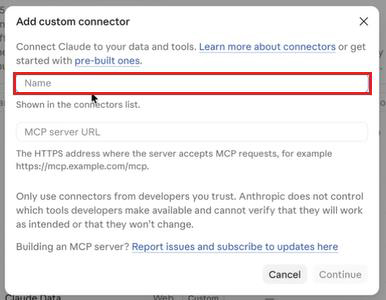
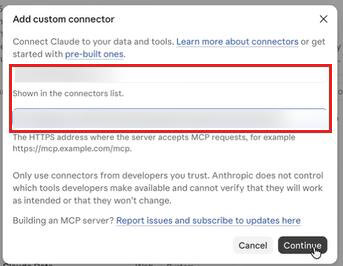
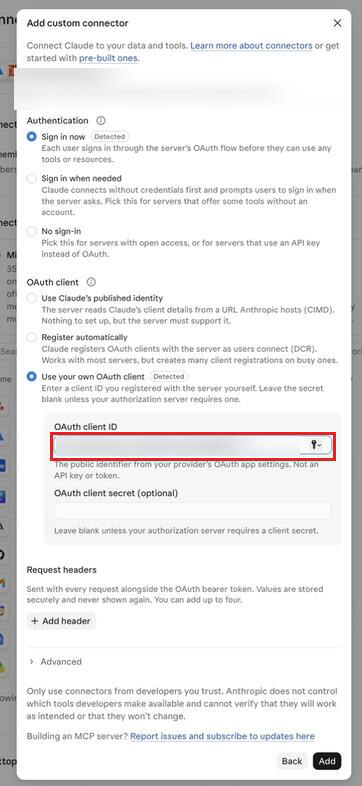
- Name: type any name. MCP server URL: paste the MCP address from Part 1. Select Continue.
- Authentication: choose “Sign in now”. Do not choose “Sign in when needed”, because D365 needs a login for everything.
- OAuth client: choose “Use your own OAuth client”. The other two choices need the server to support them. I did not test them in Claude.
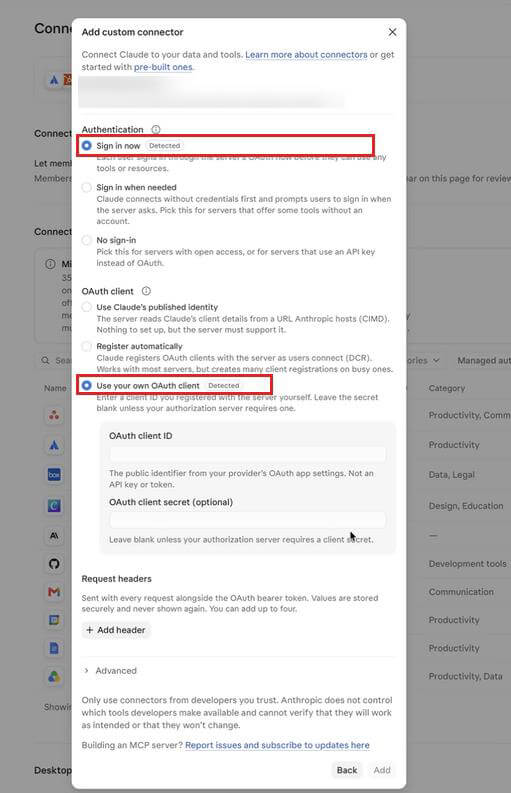
- OAuth client ID: paste the Application (client) ID of your Claude app. OAuth client secret: leave it empty. Leave Request headers and Advanced alone. Select Add.
Register Claude’s callback as a public client
- In the Entra app for Claude, follow Part 6 with this callback address: https://claude.ai/api/mcp/auth_callback.
- Where this address comes from: the Claude dialog does not show it and I could not find it in Anthropic’s support articles. The Microsoft consent screen appeared after I registered it, so Claude sent a matching address. Check Anthropic’s current documentation if Claude changes it.
- Delete any Web entry for the same address first, then add it under Mobile and desktop applications, and confirm “Allow public client flows” is Enabled.
Member: connect
- Sign in to Claude in the same browser that is signed in as the Dynamics 365 user. Open Customize, then Connectors, find the connector and select Connect. I do not have a screenshot of this click.
- Sign in as the Dynamics 365 user in the Microsoft tab and select Accept.
- After a successful connection, the connector’s Tools tab lists the Dynamics 365 tools.
Check the connector settings
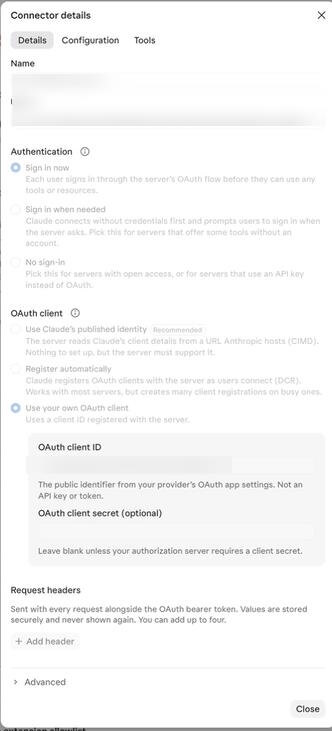
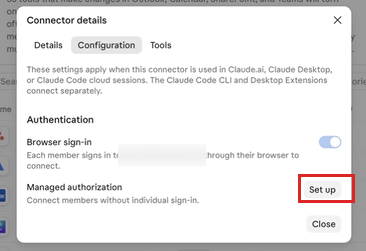
Open the connector details to check them. Details shows Sign in now, Use your own OAuth client and the client ID. Configuration shows Browser sign-in on.
Errors I hit and how I fixed them
| What you see | Cause | Fix |
| ChatGPT: “We couldn’t connect your account. Please try again.” after the Microsoft consent screen | The callback was registered as Web, so Entra wanted a client secret | Part 6: delete the Web entry, add the callback under Mobile and desktop applications, enable public client flows, then connect again |
| Claude: “Authorization with … failed” and Entra error code AADSTS7000218 | Same cause. The error means Entra expected a client_assertion or client_secret | Same fix as above, with Claude’s callback address |
| The app is refused by Dynamics 365 after sign-in | The ClientId in Allowed MCP clients is wrong or Allowed is not true | Check the row letter by letter. Delete and re-add it if the ID is wrong |
| Claude: Add custom connector is greyed out | You are a member, not an owner | Ask an organization owner to add it, as in Part 8 |
| ChatGPT: Add custom MCP server is missing | Your plan or workspace role does not allow it | Check your plan in the OpenAI article and ask a workspace admin |
What I tested and what I did not
- Tested: Parts 1 to 8, in a demo environment, on a ChatGPT Plus account and a Claude Team organisation.
- Tested: ChatGPT connected as the Dynamics 365 user and read one record in about 46 seconds.
- Tested: Claude connected after the callback fix. I did not run the chat test in Claude.
- Not documented by Microsoft: the public client setup for ChatGPT and Claude. Microsoft’s own Foundry example uses a client secret and a Web redirect.
- Not documented by Microsoft: the exact Finance and Supply Chain Management role needed for Allowed MCP clients.
- Not tested: plans other than ChatGPT Plus and Claude Team, and production environments.
Clean up
- Delete the plugin in ChatGPT and the connector in Claude when you finish testing.
- Delete the Entra apps and the rows in Allowed MCP clients so no unused app can reach the server.
- Use a demo user. Anyone with access to the connected ChatGPT or Claude account can read what that Dynamis 365 user can read.
Microsoft documentation